
One of the many annoyances of running a server is having to open up port 43594 (or whatever port you are using) in your router. Portforward.com has helped make this an easy process, but if you don't know your password to your router, you're out of luck.
Luckily, there's a technology called UPnP that can resolve this. Basically, it lets devices on your network discover and talk to each other. One use of this is to find the router, and tell it to add a port forwarding entry. We can use this to automatically port forward for our private server.
Note: UPnP has to be enabled in the router for this to work, and in most routers it is.
There is a UPnP library written in Java called UPnPLib, and I have packaged it along with a simple class I wrote to add port forwarding entries into this JAR file:
Step 1: Download the file above, and BACKUP your server before you attempt this. This is a very simple addition, but if you don't know what you've done wrong you will have a hard time fixing it!
Step 2: Place the file in the correct location.
If you are using a 317 server, place the JAR file in the server's folder with all the source (.java) and class (.class) files.

Step 3: Now that we have placed the JAR file in a location where the server can get at it, we need to include it in your server's classpath. The classpath is a list of places for the JVM to look for class files when the server is running. To add the JAR to your server's classpath, open the files you use to compile and run your server.
Here is an example picture from a 317 server:

The -cp option is used with the compiler and the server to modify the classpath. To add multiple folders/files to the classpath, you separate the paths with a semicolon on Windows (;) and a colon (:) on UNIX-like systems such as Linux or Mac OS X. You must add the JAR file to the classpath of every java or javac command in both of the run and compile files. Follow these steps to do this:
1. If there isn't a -cp option anywhere in the file already, add one after the java/javac command.
317:

2. Add the path to the JAR file to the classpath. Since we placed the JAR file in the same folder as the server code, the path to it is: .\AllGoFreePortForwarding.jar
(or ./AllGoFreePortForwarding.jar on UNIX-like systems)
If there is already something after the -cp option, add a path separator (the ; character on Windows) after what is already there, and then add the path to the JAR file.
317 (Windows file paths):

Step 4: Test both the compile and run scripts that you just edited. They should work exactly as they did before, if they do not, restore your backup and start over from the beginning or post for help, including the contents of both your run and compile scripts, and what server type you are doing this on.
Step 5: If your compile and run scripts are still functioning, then you are almost done! All you have to do is add in the few lines of code that actually do the port forwarding.
317: Open the file "Server.java" or "server.java", and find this:
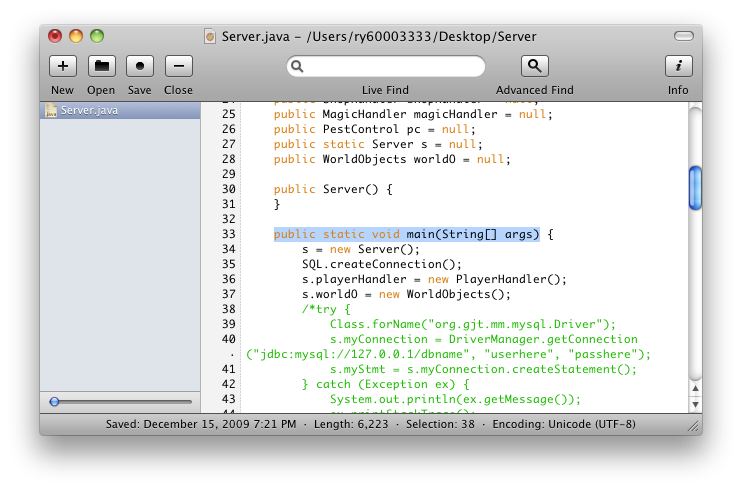
Once you've found it, simple add this code on a new line after the opening bracket of the method:

Of course you can change 43594 to whatever port you want to be forwarded, but it should match the port that your server is running on.
Step 6: Compile and run your server, and if you get the message "Automatic port forwarding complete.", then your server was successful in opening up the port in your router. Now pat yourself on the back and get back to work!
Luckily, there's a technology called UPnP that can resolve this. Basically, it lets devices on your network discover and talk to each other. One use of this is to find the router, and tell it to add a port forwarding entry. We can use this to automatically port forward for our private server.
Note: UPnP has to be enabled in the router for this to work, and in most routers it is.
There is a UPnP library written in Java called UPnPLib, and I have packaged it along with a simple class I wrote to add port forwarding entries into this JAR file:

Step 1: Download the file above, and BACKUP your server before you attempt this. This is a very simple addition, but if you don't know what you've done wrong you will have a hard time fixing it!
Step 2: Place the file in the correct location.
If you are using a 317 server, place the JAR file in the server's folder with all the source (.java) and class (.class) files.
Step 3: Now that we have placed the JAR file in a location where the server can get at it, we need to include it in your server's classpath. The classpath is a list of places for the JVM to look for class files when the server is running. To add the JAR to your server's classpath, open the files you use to compile and run your server.
Here is an example picture from a 317 server:
The -cp option is used with the compiler and the server to modify the classpath. To add multiple folders/files to the classpath, you separate the paths with a semicolon on Windows (;) and a colon (:) on UNIX-like systems such as Linux or Mac OS X. You must add the JAR file to the classpath of every java or javac command in both of the run and compile files. Follow these steps to do this:
1. If there isn't a -cp option anywhere in the file already, add one after the java/javac command.
317:
2. Add the path to the JAR file to the classpath. Since we placed the JAR file in the same folder as the server code, the path to it is: .\AllGoFreePortForwarding.jar
(or ./AllGoFreePortForwarding.jar on UNIX-like systems)
If there is already something after the -cp option, add a path separator (the ; character on Windows) after what is already there, and then add the path to the JAR file.
317 (Windows file paths):
Step 4: Test both the compile and run scripts that you just edited. They should work exactly as they did before, if they do not, restore your backup and start over from the beginning or post for help, including the contents of both your run and compile scripts, and what server type you are doing this on.
Step 5: If your compile and run scripts are still functioning, then you are almost done! All you have to do is add in the few lines of code that actually do the port forwarding.
317: Open the file "Server.java" or "server.java", and find this:
Code: [Select]
public static void main(String[] args)Once you've found it, simple add this code on a new line after the opening bracket of the method:
Code: [Select]
            try {
                    System.out.println("Automatically port forwarding...");
                    org.allgofree.upnp.UpnpPortForwarder.INSTANCE.addMapping(43594);
                    System.out.println("Automatic port forwarding complete.");
            } catch (Exception ex) {
                    System.out.println("Could not automatically port forward, stacktrace:");
                    ex.printStackTrace();
            }
Of course you can change 43594 to whatever port you want to be forwarded, but it should match the port that your server is running on.
Step 6: Compile and run your server, and if you get the message "Automatic port forwarding complete.", then your server was successful in opening up the port in your router. Now pat yourself on the back and get back to work!




Link to AllGoFreePortForwarding.jar is dead